
Paymentus FAQ
Paymentus
Paymentus is the company KPU uses for online, phone, and automatic payments for Telecommunications and Utilities bills.
With a Paymentus account, you can choose any of these features:
- eBill – Get an email when your new bill is ready. The email shows the amount due and the due date.
- Paperless Billing – Stop getting a paper bill in the mail by turning on the paperless setting in your account. Available for both Telecommunications and Utilities.
- AutoPay – Pay your bill automatically on the due date with a credit card, debit card, or bank account (eCheck/ACH).
- Payment Reminder – Get an email a few days before, on, or a few days after your due date. You only get reminders if you sign up for them.
- Wallet – Save your credit card, debit card, or bank account so you don’t have to enter it each time.
- Pay by phone – Save a payment method when you pay through the automated phone line.
- Credit cards: Visa, Mastercard, Discover, American Express
- Debit cards: Visa, Mastercard, Discover
- Bank account: eCheck / ACH (bank draft)
- Digital wallets: Google Pay, Apple Pay, PayPal, Venmo
Telecommunications and Utilities each have their own payment site. Bookmark the one you need, or both:
You can also find both links at ketchikan.gov/billpay.
If you have both services, you need a separate login on each site. Use the same email address for both.
You’ll need:
- An email address. It doesn’t have to be your KPU email. Your payment receipts are sent here. If you have both services, use the same email on both sites.
- Your account number from your bill. See “Where do I find my account number?” below.
Steps:
- Go to the Telecommunications or Utilities payment site.
- Click Register Now.
- Fill in the required information, create a password, and click Enroll.
Each site has its own login. Changing your password on one site does not change it on the other.
Once you’re logged in, you can:
- Add an account: Accounts → Add new
- Save a payment method: My Wallet
- Go paperless: Accounts → turn on the Paperless toggle for each account
- Turn AutoPay on or off: Accounts → use the AutoPay toggle for each account, just below Paperless
- View Bill History and Payment History
Telecommunications: Your service account number is on the Statement Detail page of your bill. Enter it without the zeros at the front. For example, if your bill shows 0000011111, enter 11111.

Utilities: Enter your account number exactly as it appears on your bill, including the dash.
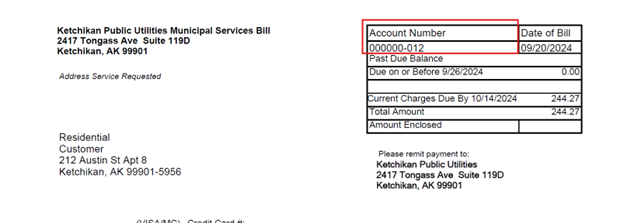
Turn on paperless billing in your online account:
- Log in to the Telecommunications or Utilities payment site.
- Go to Accounts.
- Turn on the Paperless toggle. If you have more than one account, turn it on for each one.
When you turn on Paperless, email notices are turned on too, so you’ll get an email when your new bill is ready.
Paperless starts with your next bill, so you may receive one more paper bill. Your bill will be in your online account under Bill History.
No. You can make a one-time payment without an account:
- Telecommunications one-time payment
- Utilities one-time payment
- Enter your account number. See “Where do I find my account number?” above.
- On the next page, enter your name, billing ZIP code, and email address. Your receipt is sent to that email.
- Choose your payment method and pay.
The automated payment line is available 24 hours a day. Have your account number ready (see “Where do I find my account number?” above), then call:
- Telecommunications: 1-833-944-0038
- Utilities: 1-833-944-0037
Follow the prompts. If you pay from a bank account (eCheck), be sure to approve the payment when the system asks at the end.
Yes. Call (907) 228-5474, Monday through Friday, 8:30 am to 5:00 pm Alaska time.
Yes. Visit KPU Customer Service at the Plaza Mall, 2417 Tongass Ave, Suite 119D, Monday through Friday, 8:30 am to 5:00 pm Alaska time.
Yes. Mail your payment to either address:
- 2417 Tongass Ave, Suite 119D, Ketchikan, AK 99901
- 334 Front Street, Ketchikan, AK 99901
Write your account number on your check, and mail it early enough to arrive by the due date.
